Home / Configuration Reference / Section: Users / Teams
Teams
Page Type: Table (URL: https://dad3.ndrn.org/admin/admindisplayteams)
Associated Record Type: Users
Teams are agency-defined selections. Each project and service request must be assigned to one or more Teams. Each User can be assigned to (associated with) one or more Teams, either in the User Maintenence form or in the Teams form below.
Teams are used in various lists/views of Service Requests and Projects. Users can view records that are assigned to their Team. Additionally, Service Request and Project View (Own) and Edit (Own) permissions are also granted for all records assigned to the User's Team, not just the individual User. For this reason, assigning Users to Teams can be used as a way to manage record permissions.
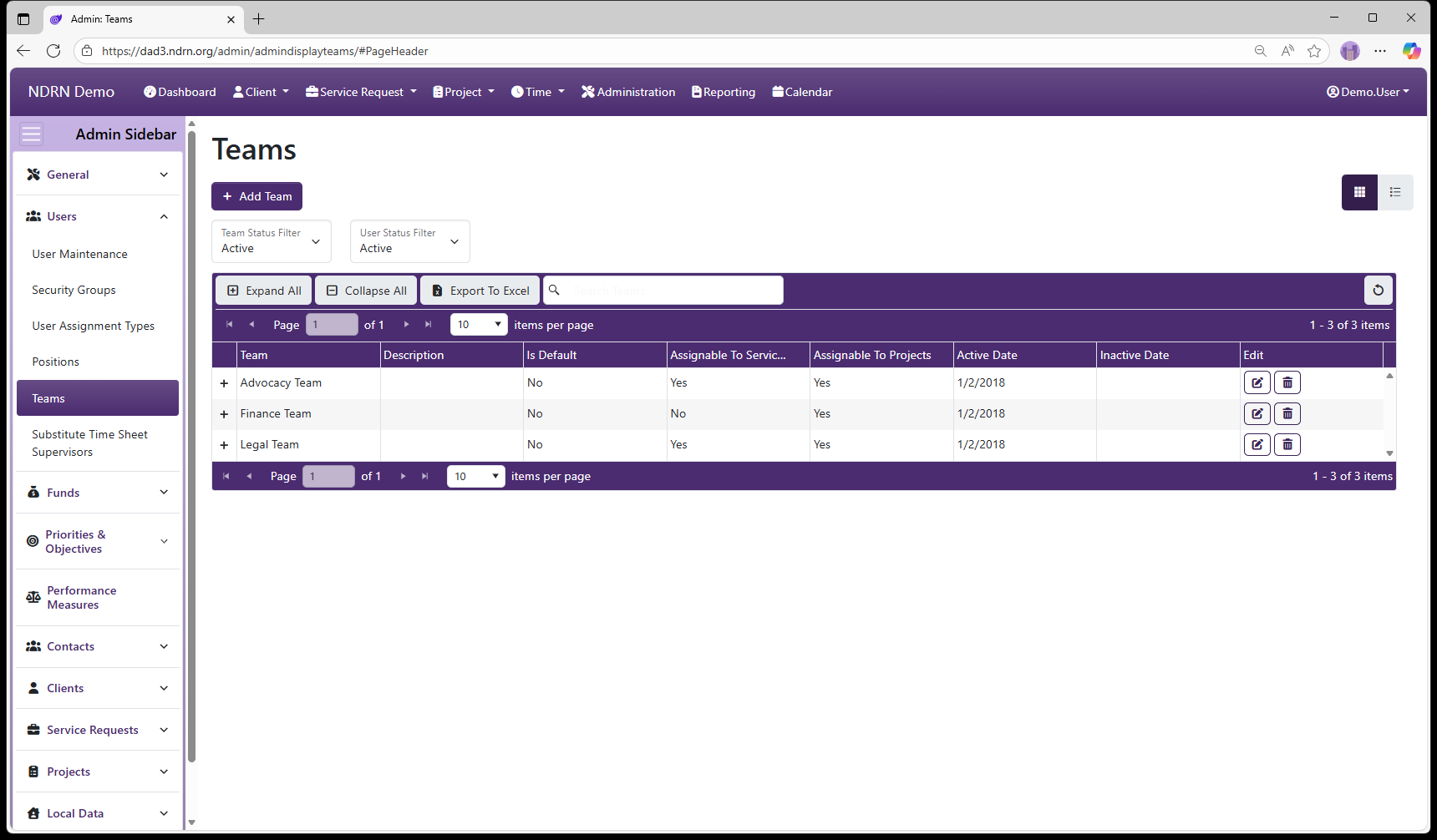
Operations available on this page include: Add Team button to add a new entry, Edit and Delete buttons for exisiting entries, Expand All and Collapse All buttons to show or hide Associated Users, and an Export to Excel button to export the settings to a file.
To export the Users for each Team, they must be displayed as a column. Before exporting, edit the Columns settings and select Users for display.
This screenshot contains some examples of Teams:
Teams Form
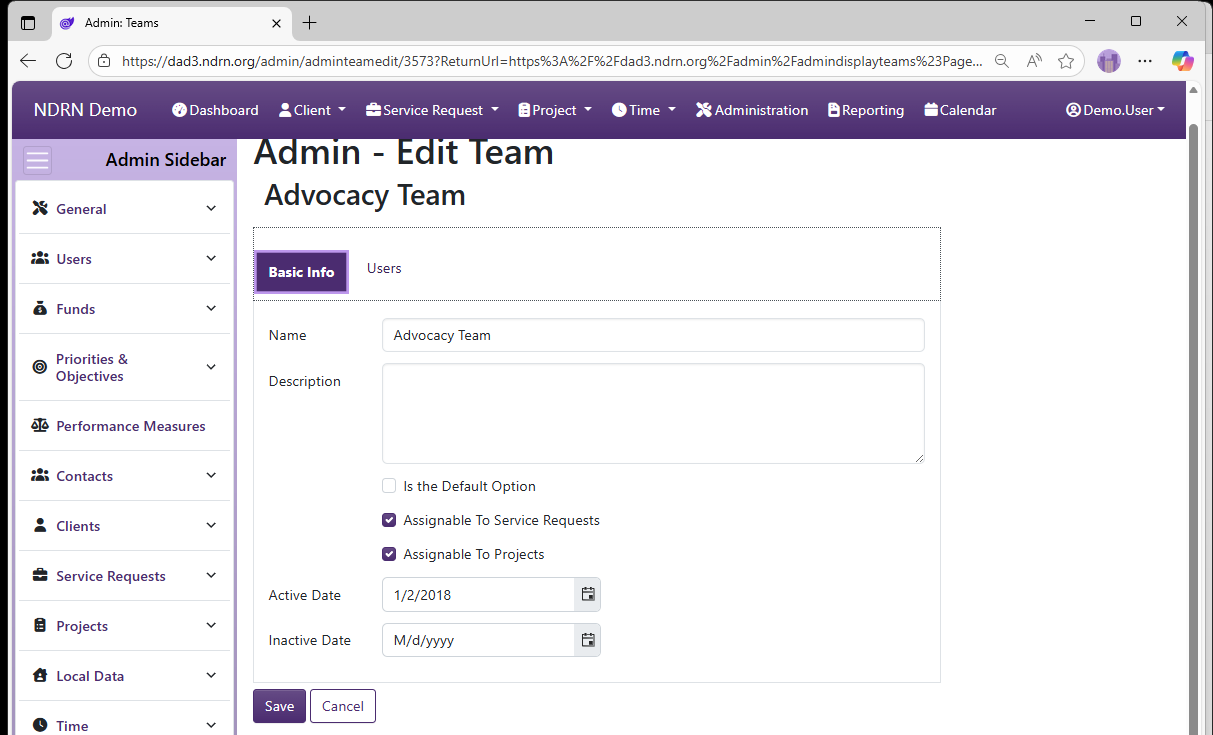
Basic Info Tab
-
Name Display name of the Team (Short Text - required)
-
Description This field is for agency use. (Long Text - optional)
-
Is the Default Option If this box is checked, this Team will be selected by default for new records. (Checkbox)
-
Assignable to Service Requests If this box is checked, this Team will appear as an option in Service Request records.
-
Assignable to Projects If this box is checked, this Team will appear as an option in Project records.
-
Active Date The Team will appear as an option between the Active Date and Inactive Date. (Required)
-
Inactive Date The Team will appear as an option between the Active Date and Inactive Date. (Optional)
Users Tab
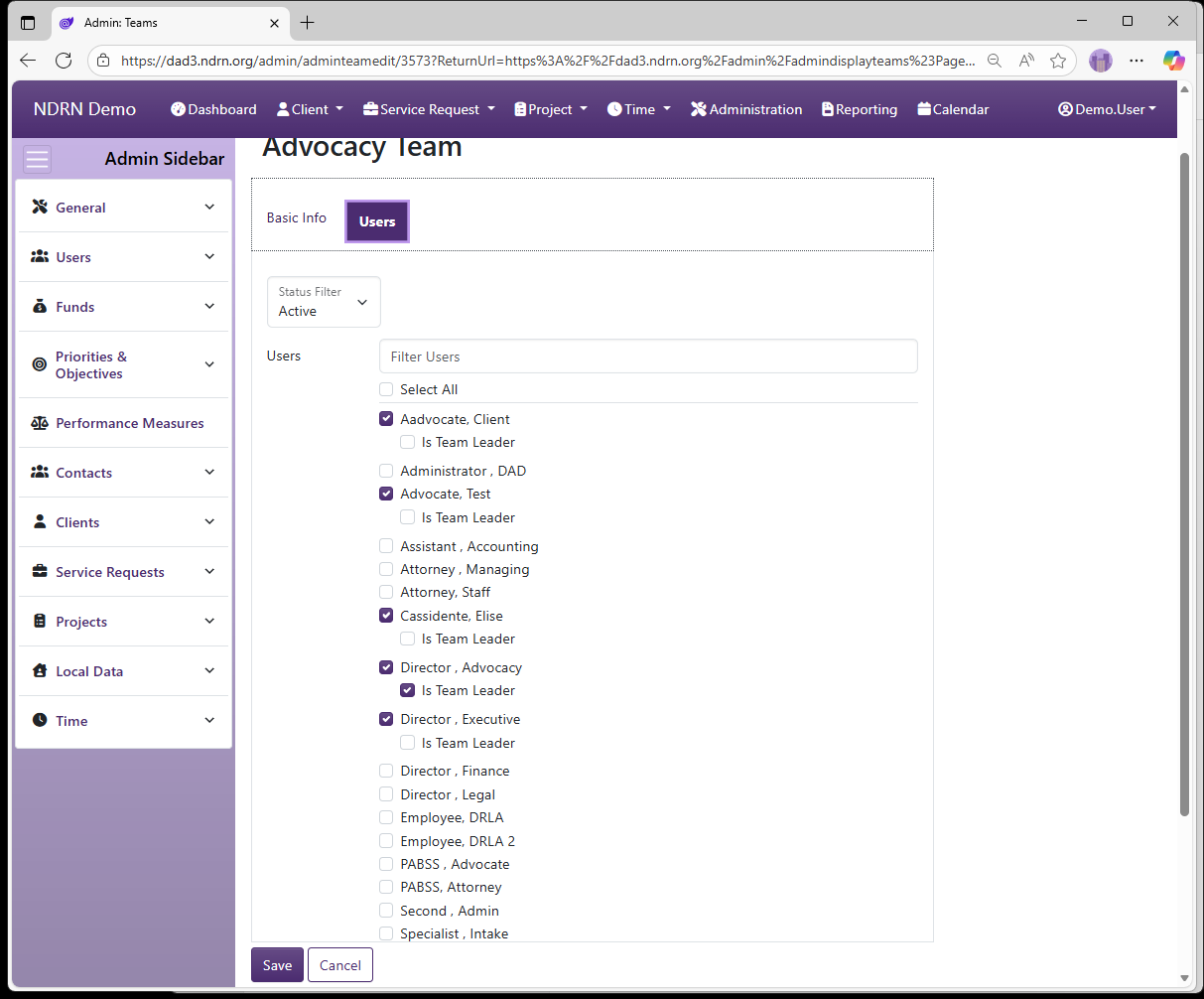
This tab contains a list of Users (filtered by Active Users by default). The "Filter Users" text box can be used to narrow down the list (start typing the user name). Check all Users assigned to the Team, and check Is Team Leader for any user needing to utilize a permission involving "Team Leader Access"..
← Previous: Positions | Next: Substitute Time Sheet Supervisors →