Home / Configuration Reference / Section: Users / User Maintenance
User Maintenance
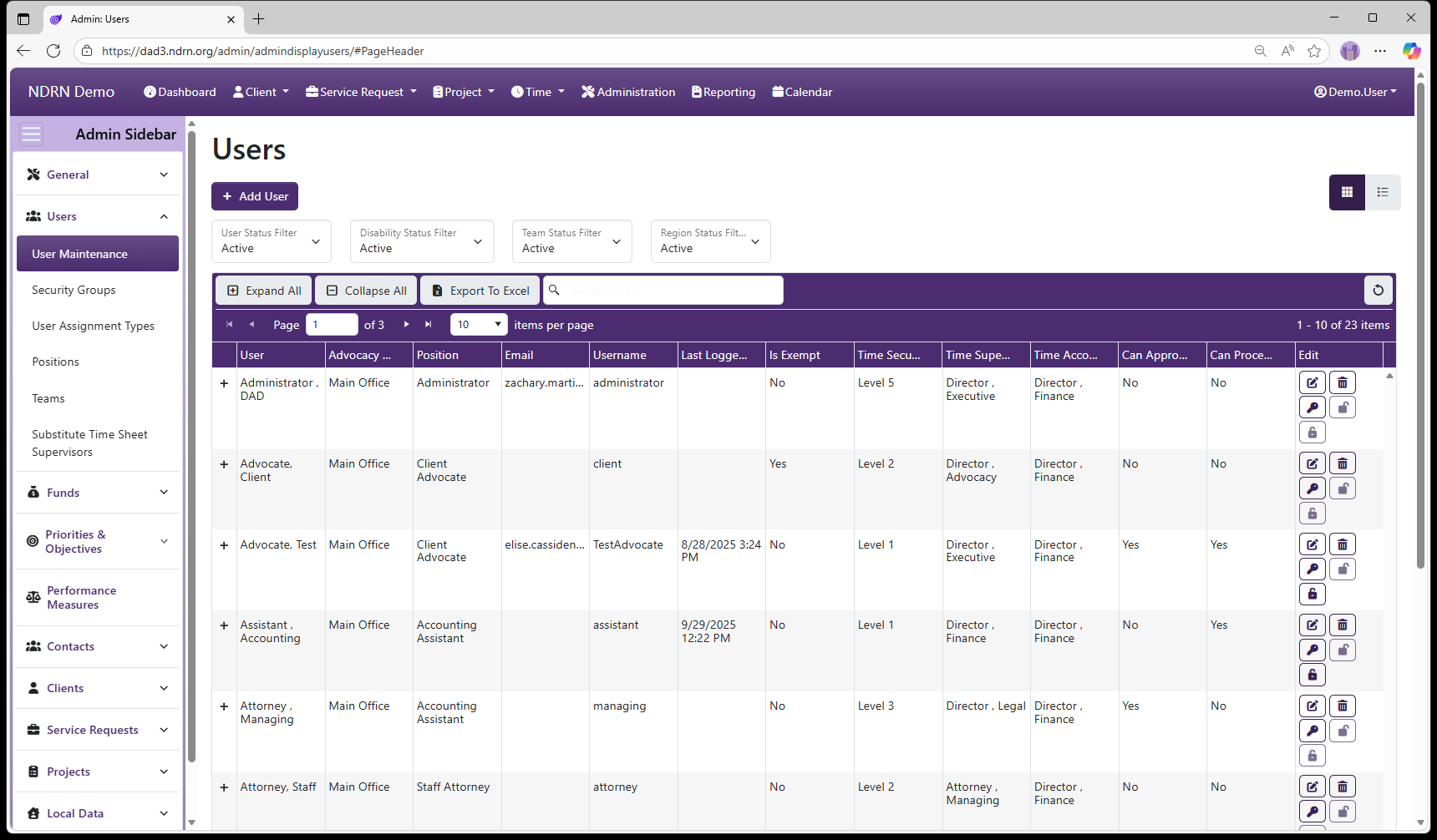
Page Type: Table/Utility (URL: https://dad3.ndrn.org/admin/admindisplayusers)
Associated Record Types
- Disabilities (Funds section)
- Security Groups
- Teams
- Regions (Service Requests section)
Operations
Add New User
To add a new user to the system, click the Add User button at the top of the page. The Add New User form will appear.
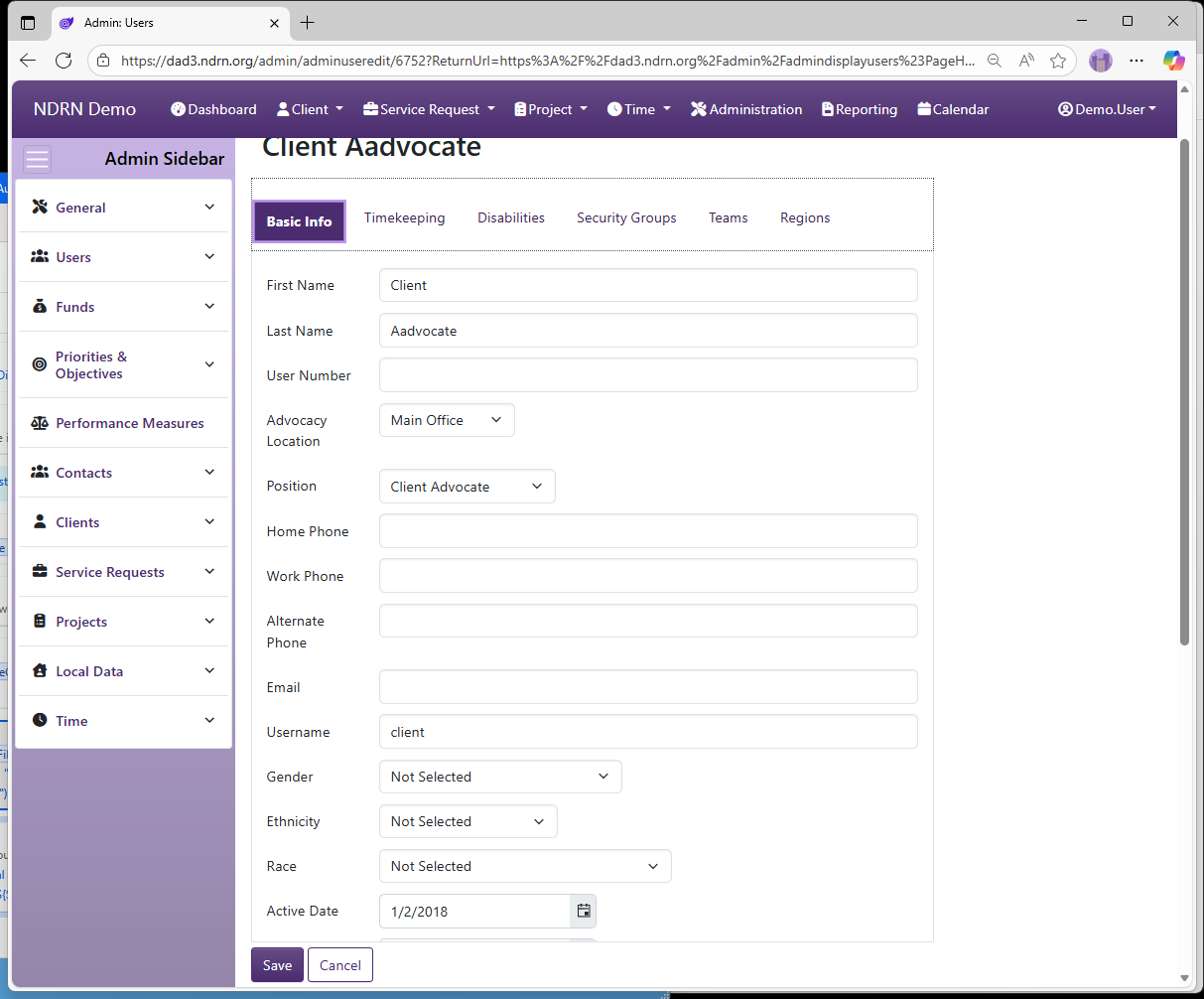
- At a minimum, First Name, Last Name, User Name, and Password must be entered in Tab 1: Basic Info. The Active Date should be set to the first day that the new user should be able to log in to DAD, and it can be set to a future date if desired.
- To complete a new User setup successfully, Security Groups must be assigned to the new user (Tab 4: Security Groups).
- Agencies using Timekeeping functions must configure the new user’s settings in Tab 2: Timekeeping.
- Agencies using Regions and/or Teams should configure these settings in Tab 5: Teams and Tab 6: Regions.
- Agencies using DAD to track employee demographic information can optionally enter this information in Tab 1: Basic Info and Tab 3: Disabilities.
Edit User

To edit an existing User record, select the Edit User button (displayed as a pencil and paper icon in the Edit column of the Users grid). The Edit User form will appear. The layout is almost identical to the Add New User form, but:
- It does not have a Password field (changing a user password is a separate action instead).
- There are additional fields related to account activity.
Delete User

To delete an existing User record, select the Delete User button (displayed as a trashcan icon in the Edit column of the Users grid). Agency policies should define when to deactivate versus delete a user account. In most cases, a user account cannot be deleted because it is referenced by other records in the database.
Change Password

To change an existing User's password, select the Change Password button (displayed as a key icon in the Edit column of the Users grid).
Unlock Account

To unlock a user’s account after too many failed login attempts, select the Unlock Account button (displayed as an unlocked padlock icon in the Edit column of the Users grid).
In DAD 3.0, a user's account will unlock automatically after 5 minutes when locked due to failed login attempts.
Reset 2FA

Use this operation to reset a user’s two-factor authentication (2FA) configuration so they can re-enroll their device.
In DAD 3.0 users can reset their own 2FA under Manage your Acccount settings if they are able to log in to their account, or through use of the recoevery codes that are generated when setting up their authenicator.
User Form Layout and Contents
User Form Tab 1: Basic Info
-
First Name (Short Text - required) Enter the user's first name as it should display in DAD records. If a user has a different name for timesheet/payroll purposes, you can specify this in Tab: 2 Timekeeping, Time Sheet First Name.
-
Last Name (Short Text - required) Enter the user's last name as it should display in DAD records. If a user has a different name for timesheet/payroll purposes, you can specify this in Tab: 2 Timekeeping, Time Sheet Last Name.
-
User Number (Short Text - optional/agency defined)
Agencies can use this field to align Employee records with their other systems if desired.
-
Advocacy Location (Dropdown selection)
This dropdown is populated with active Advocacy Locations (see Administration > General > Advocacy Locations).
-
Position (Dropdown selection)
This dropdown is populated with active Positions (see Administration > Users > Positions).
-
Home Phone, Work Phone, and Alternate Phone (Short Text - optional)
-
Email
It is highly recommended to enter the user’s valid email address in this field. Without an email address, it is not possible for a user to recover their account with Forgot my Password or receive notifications related to Timesheets and Supervisor Closure Reviews. (Short text - optional; but required for notifications and Forgot Password functionality)
-
Username
This is the name the user will enter to log in to DAD. (Short Text - required)
-
Password
In DAD 2, passwords were restricted to 8–14 characters and required at least 1 uppercase, 1 lowercase, 1 number, and 1 special character. In DAD 3, password length can be longer than 14 characters. (Short Text - required)
-
Generate Random Password button
Clicking this button automatically generates a random password in the Password field.
-
Gender (Dropdown selection)
-
Ethnicity (Dropdown selection)
-
Race (Dropdown selection)
-
Active Date
An account is considered Active if the current date is on or after the Active Date, and the Inactive Date is either empty or set to a date after the current date. A user cannot log in to an account unless it is active. (Date - required)
-
Inactive Date
An account is no longer active when the current date is after the Inactive Date. Important: An account remains active through the Inactive Date and becomes inactive the day after the Inactive Date. (Date - optional)
-
Force Password Change on Next Login
Administrators can check this box when creating or editing an account to force a user to set a new password the next time they log in. The box is unchecked automatically after the password has been changed. (Checkbox)
-
Notes
This field is for agency use. It is commonly used to document any changes to a user’s account settings. (Long Text - optional)
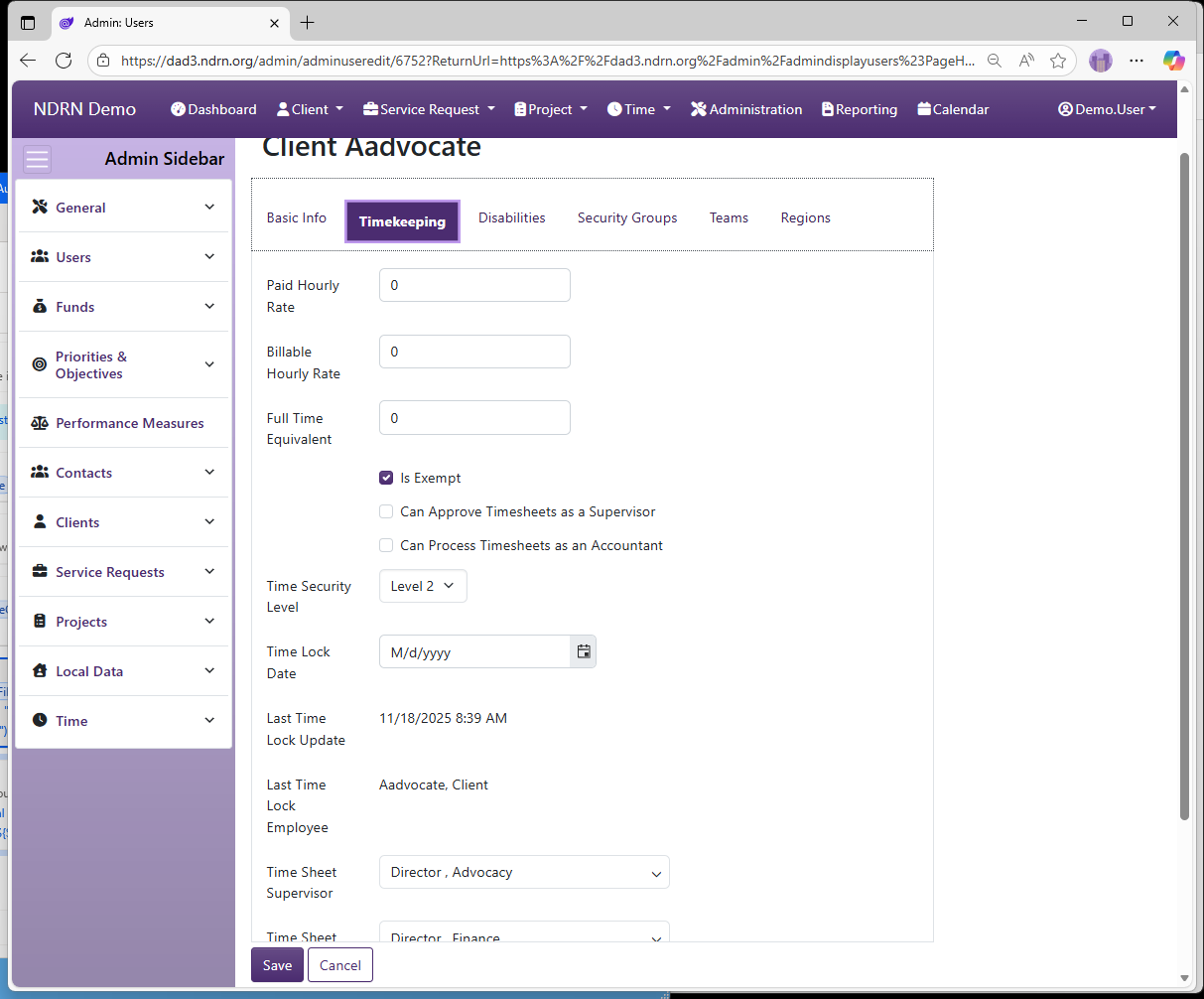
User Form Tab 2: Timekeeping
-
Paid Hourly Rate (Number (up to 2 decimal places) - optional) This field is used primarily by agencies who do timekeeping calculations that reference employee pay rates in the DAD Report Generator. Important: Any user who has Report Generator access technically has access to this information.
-
Billable Hourly Rate (Number (up to 2 decimal places) - optional)
-
Full Time Equivalent (Number (up to 2 decimal places) - optional)
-
Is Exempt (Checkbox)
Users marked "Exempt" will not be subject to recording Clock In/Clock Out times that align with their total recorded non-leave time.
-
Can Approve Timesheets as a Supervisor (Checkbox)
Check this box to allow a user to appear on the dropdown list for the Time Sheet Supervisor field in the User form. Note: A user must also have proper permissions granted to approve timesheets. See Timekeeping Settings.
-
Can Process Timesheets as an Accountant (Checkbox)
Check this box to allow a user to appear on the dropdown list for the Time Sheet Accountant field in the User form. Note: A user must also have proper permissions granted to process timesheets.
-
Time Security Level (Dropdown selection)
-
Time Lock Date (Date - optional)
-
Time Sheet Supervisor (Dropdown selection)
Submitted timesheets for this user will appear on Time Sheet Supervisor's approval queue. -
Time Sheet Accountant (Dropdown selection)
Approved timesheets for this user will appear on Time Sheet Accountant's processing queue. -
Time Sheet First Name (Short Text - optional)
If a user uses a different name for timesheet/payroll purposes, you can specify it here. Otherwise, leave this field blank.
-
Time Sheet Last Name (Short Text - optional)
If a user uses a different name for timesheet/payroll purposes, you can specify it here. Otherwise, leave this field blank.
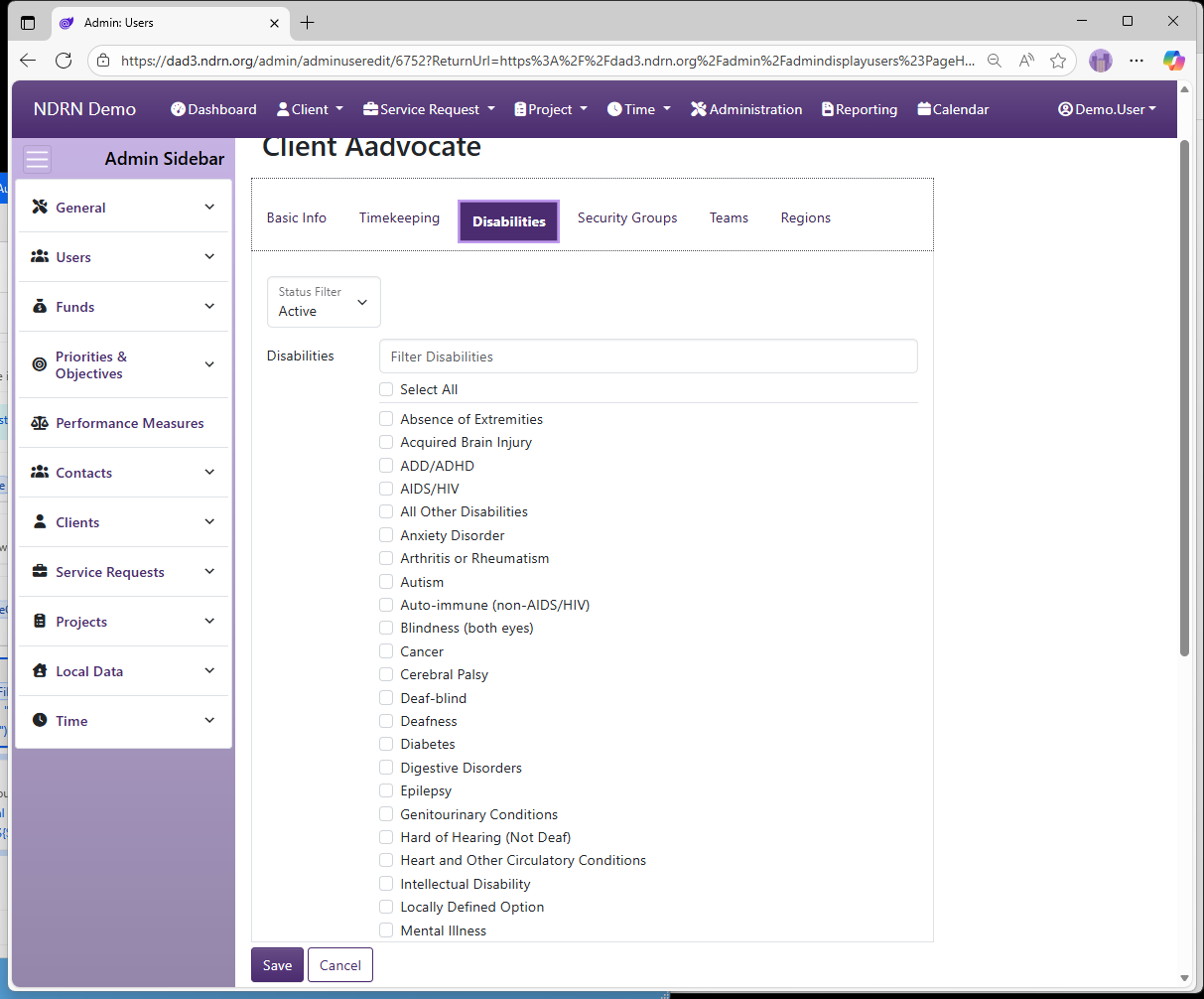
User Form Tab 3: Disabilities
This tab contains a multiselect checklist of active Disabilities (options are defined in Administration > Funds > Disabilities) with a text-field filter. If your agency tracks disability information for staff in DAD, you can select any disabilities that apply. Otherwise, leave this section blank.
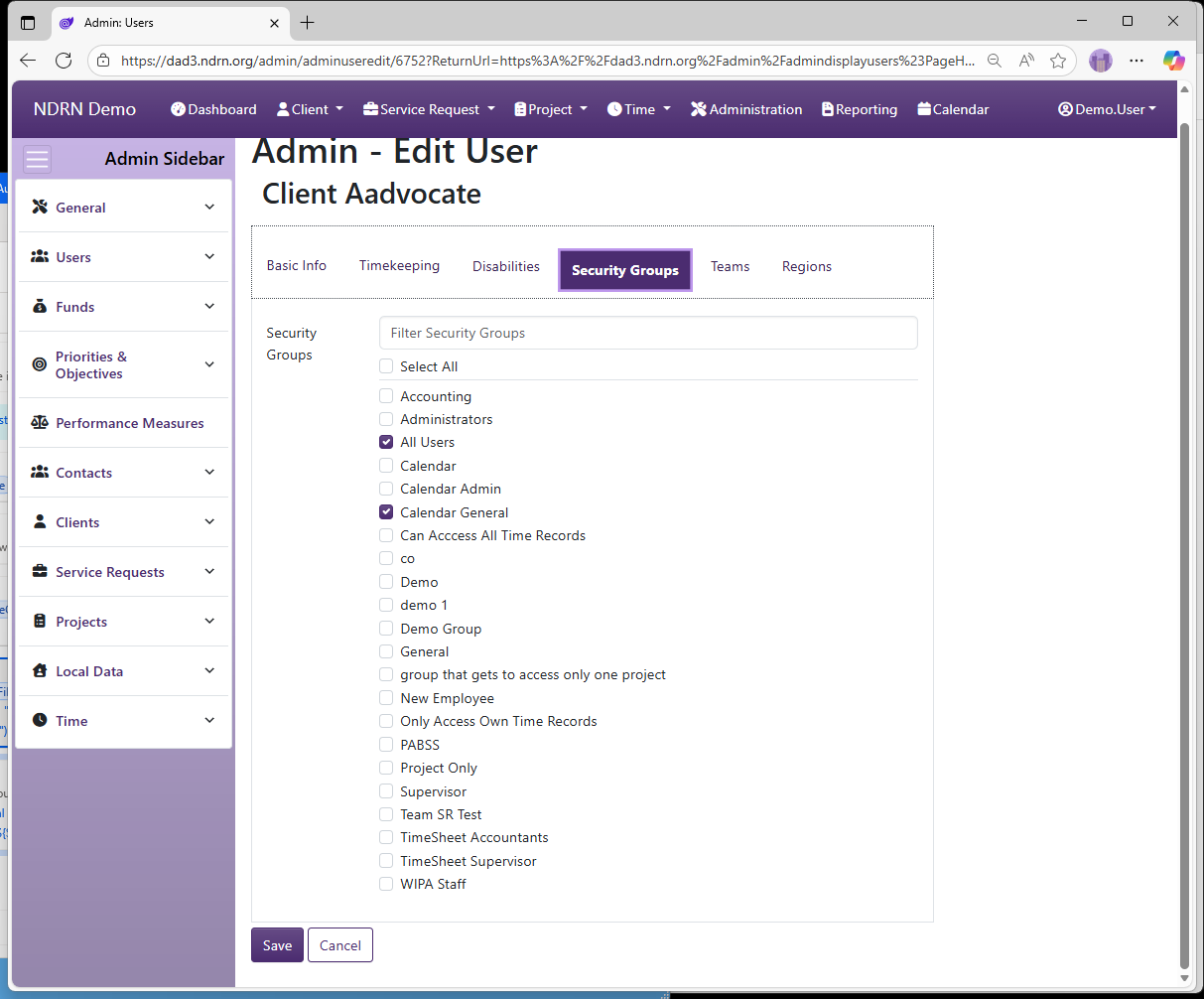
User Form Tab 4: Security Groups
This tab contains a multiselect checklist of active Security Groups (options are defined in Administration > Users > Security Groups) with a text-field filter. Selecting a Security Group will grant the user all of its permissions. Note: It is essential that all DAD users are added to the All Users Security Group.
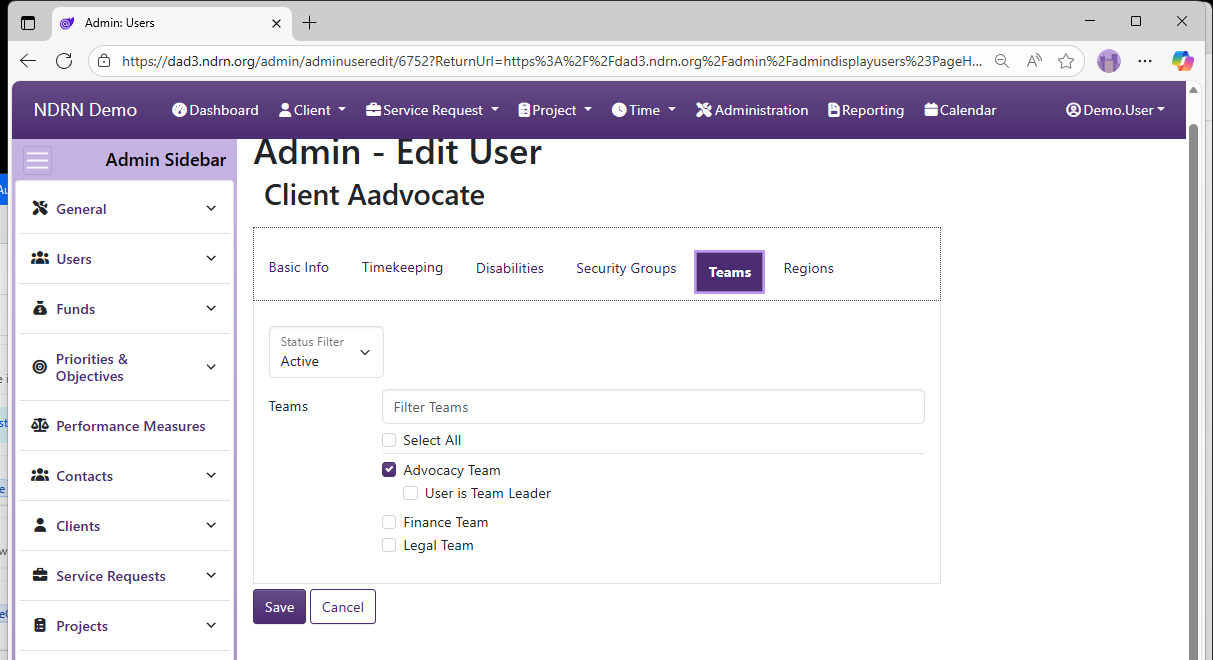
User Form Tab 5: Teams
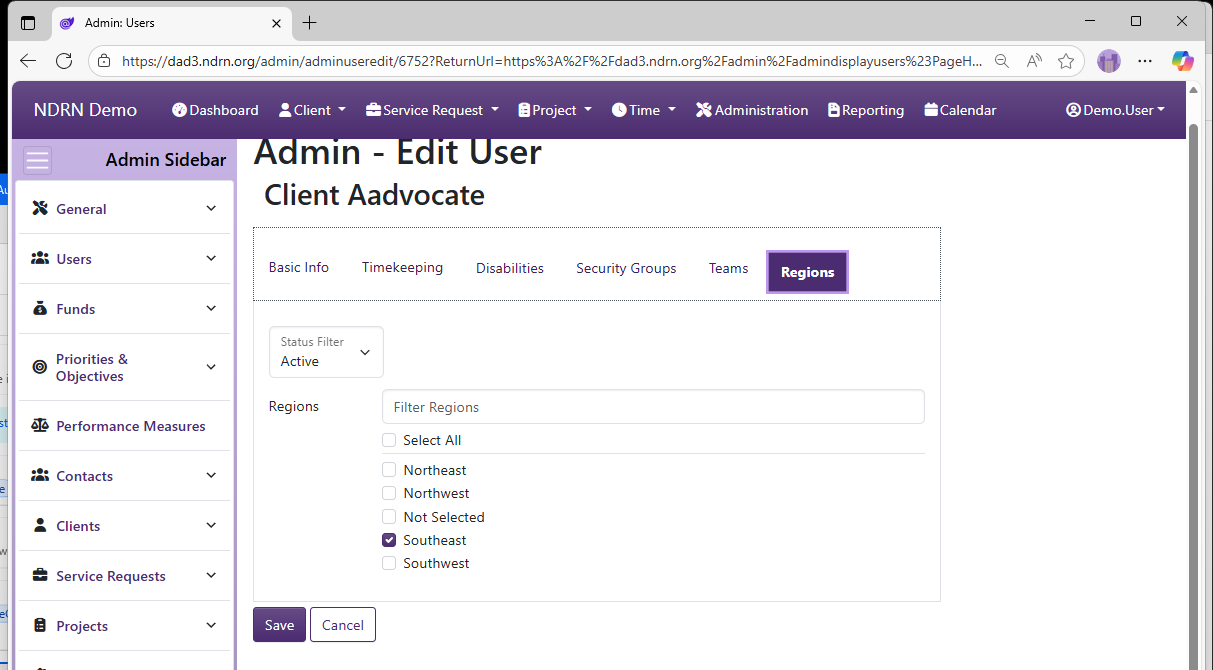
Multiselect checklist of Teams (options are defined in Administration > Users > Teams) with a Status Filter dropdown and a Filter Teams text field to narrow down selections to items containing the text entered. If your agency assigns users to Teams in DAD, select them here. Otherwise, leave this section blank.
User Form Tab 6: Regions
Multiselect checklist of Regions (options are defined in Administration > Users > Regions) with a Status Filter dropdown and a Filter Regions text field to narrow down selections to items containing the text entered. If your agency assigns users to Regions in DAD, select them here. Otherwise, leave this section blank.